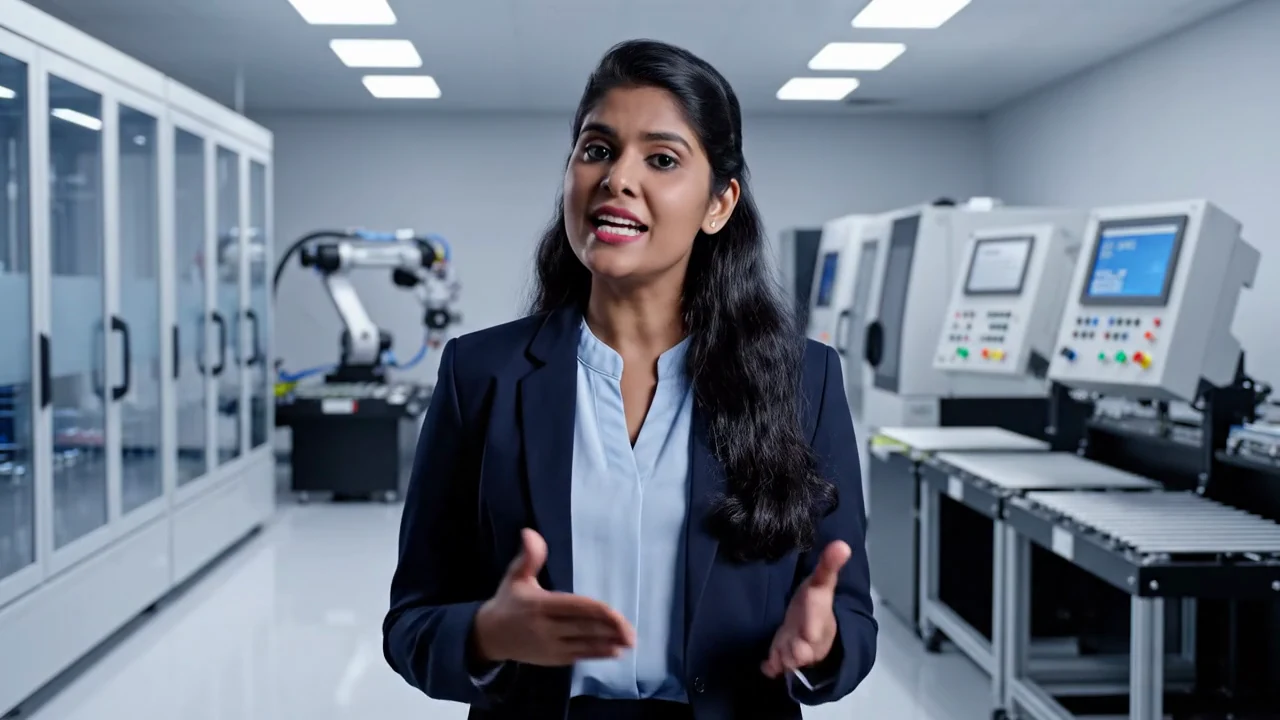
An optional presenter inside the video project
Martius can add an avatar presenter to a product story, sales demo, explainer or learning video. The presenter works with the same script, scenes and source material as the rest of the project, rather than replacing the product with a separate talking-head clip.
Choose a presenter when a voice and visible speaker improve understanding. Use real product footage, diagrams or interface capture to establish the substance of the explanation.
Distinguish the supported presenter sources
Select a preset or existing character, use an authorized custom portrait, or bring local footage of a person. Keep the origin and permission with the project. A custom portrait is a character source; it does not by itself establish a verified digital twin of a real person.
The source choice changes what needs review. Check permission and likeness for portraits, wording and rights for supplied footage, and the intended brand use for preset characters. Do not imply a real customer endorsement or specialist qualification without its separate evidence.
- Preset or existing character: choose the approved presenter
- Custom portrait: use a source authorized for this purpose
- Supplied person video: retain origin and usage permission
- All sources: review the actual composition and performance
Choose and reuse the voice deliberately
Select a supported voice for the narration and keep its reference with the presenter and project. Record language and pronunciation guidance for product names, units and specialist terms. Reuse the approved voice where continuity serves the next task.
Voice selection, narration generation and voice cloning are different capabilities. This workflow does not imply an independent clone of someone’s voice. A new language version also needs a meaning and pronunciation review; it is not a promise to translate any arbitrary old video.
Place the presenter where the explanation helps
Use independent presentation for a short introduction, picture-in-picture beside an interaction, or split-screen beside a diagram. Set the presenter’s scene window, scale and position so the product and key labels remain visible.
Inspect each destination version. A composition that works in landscape can hide the same interface action in portrait. Keep prices, captions, controls and important product detail clear of the presenter.
Update the passage when the script changes
Change the affected narration and regenerate the relevant presenter passage in the project. Review voice, mouth synchronization, identity consistency, pacing and the transition to the product clip. The longer or shorter spoken line may affect nearby scenes.
Compare retained passages with the approved revision. If the underlying product fact changes, include titles, captions, footage and destination text in the same impact review.
Keep original portraits and audio local
Original portraits, source audio, person footage and editable projects remain on your device. A finished presenter passage and a final delivery are derived results, not permission to upload the original source folder. Publishing sends selected outputs and required metadata only after your explicit approval.
Local files do not mean all AI operations run offline. Consult the app’s model-request and destination settings for those separate flows. The portrait workflow does not announce real-time conversation, interactive digital humans, live streaming or an unrestricted identity-replication service.
Questions about this workflow
Which presenter sources can I use?
Use a preset or existing character, an authorized custom portrait, or local footage of a person. Keep the source and permission with the project and inspect the final performance.
Can the presenter appear next to my actual product?
Yes. Use picture-in-picture or split-screen, or move between presenter and product-only scenes. Keep real product detail and important labels unobstructed.
Does a portrait-based presenter include a voice clone?
No. A portrait source and a selected narration voice are separate. This workflow does not imply a verified clone of a real person’s voice.
Can I revise narration without starting the film again?
Yes. Update the affected script, narration and presenter passage in the same project. Recheck synchronization, surrounding timing and captions.
Does this feature provide real-time avatar conversations?
The documented workflow creates and revises presenter passages for video projects. It does not describe real-time conversations, streaming avatars or interactive digital-human sessions.