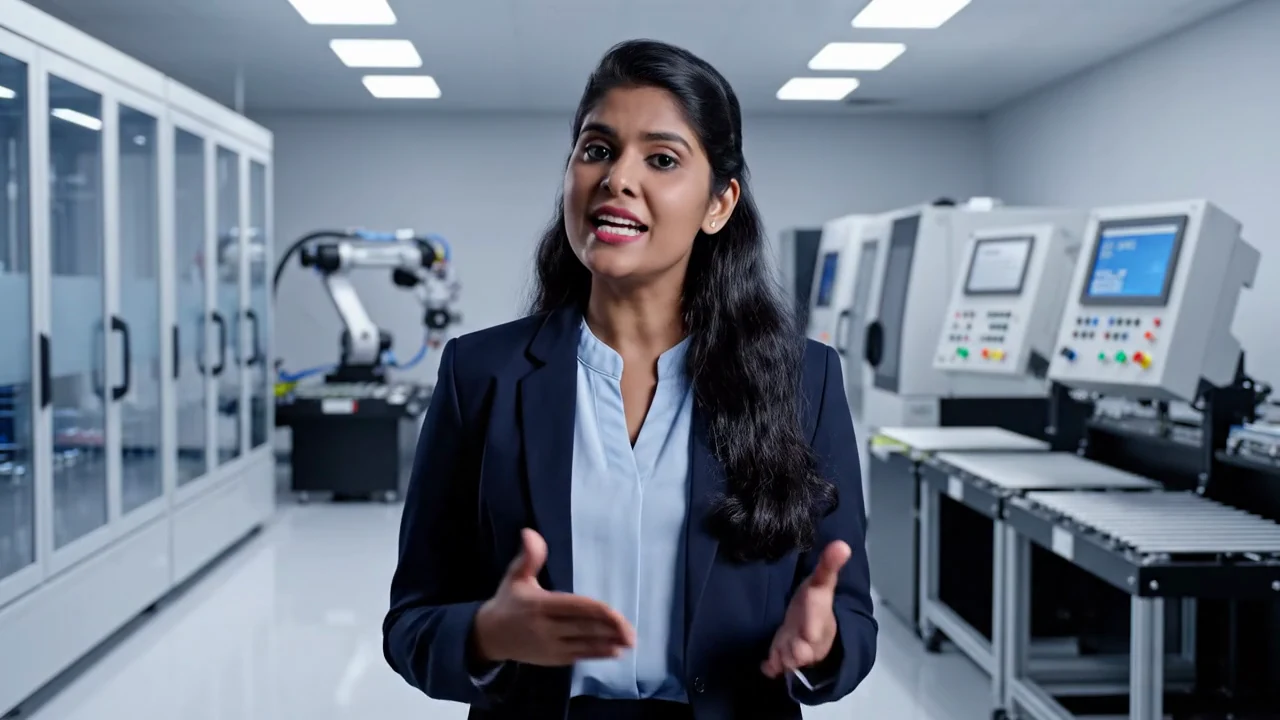
Give the presenter a job in the story
An avatar product video works when the presenter helps the viewer understand what the product footage shows. Use a presenter for an introduction, a technical explanation or a closing invitation. Give the real product enough screen time to demonstrate appearance, action and result.
In Martius, an avatar is optional material inside the video project. Choose a preset or existing character, use an authorized custom portrait, or bring local footage of a person. Select and reuse the approved voice, then place the presenter in the scenes where explanation helps.
Choose the source and permissions before generating
Use a character or portrait that you have permission to use in the intended campaign. If a real person supplies the image, recording or voice material, confirm consent and the allowed use. Keep that source record with the project. A character made from a portrait does not establish a complete digital copy of that person.
Decide who the presenter represents: your brand, a neutral narrator or a named specialist who actually approved the content. Do not imply a customer endorsement, qualification or clinical authority merely by choosing a convincing face.
Write what the presenter says beside what the product shows
Use a two-column outline: the line being spoken and the product evidence visible at that moment. Open with the audience question, explain the relevant action and leave space for the outcome. The presenter should not claim a feature the footage never demonstrates.
Example: a software presenter introduces a new review workflow, moves into a corner while a real capture shows the approval action, then returns for a demo invitation. An industrial presenter can explain an inspection sequence while actual equipment footage remains the main view.
Choose full-frame, picture-in-picture or split-screen
A full-frame presenter can establish context before the demonstration. Picture-in-picture preserves most of the product view. Split-screen works when the viewer needs the speaker and a diagram at the same time. Choose the arrangement for the scene, rather than leaving one layout on for the whole film.
Set the presenter’s size and time window so they do not hide a product detail, price, control, diagram label or caption. A vertical version often needs a new composition. Review each version instead of shrinking the horizontal layout into a smaller frame.
- Full-frame: introductions and short transitions
- Picture-in-picture: narration over a real demonstration
- Split-screen: presenter beside a diagram or detailed explanation
- Product-only: moments when the evidence needs the full frame
Check the voice and performance as an actual passage
Preview the entire narrated passage with the product footage. Check product names, numbers, units, pacing, mouth synchronization and natural pauses. Use pronunciation guidance for a technical name where needed, then listen to the generated result. A text script is not evidence that the audio says every line correctly.
For a language variant, review the meaning with a suitable language reviewer and check the spoken delivery. Reusing the same presenter and voice reference supports continuity; the task still needs its own timing and content review.
Make script changes inside the same project
When a price, feature or explanation changes, request an impact review and update the affected presenter passage along with titles, captions and product footage. Keep approved scenes as the reference and compare the next version.
Do not patch a new spoken line onto an old visible performance without checking synchronization. A longer line may need a longer scene or different handoff between presenter and product. Check the transitions and export the revised companions from the same project revision.
Review the final composition and its destination
Watch once for comprehension, then inspect the actual exported video for presenter stability, legibility, sound and accurate product information. Confirm that the campaign permissions cover the person, voice, footage and destination.
Original portraits, source audio, raw footage and editable projects stay local. Export creates a delivery copy; publishing sends only the approved output and necessary destination metadata. The local-file policy does not turn every AI operation into an offline service.
Questions about this workflow
Should the avatar remain on screen for the entire video?
No. Use the presenter where it helps explain the story. Give product details, interface actions and important visual results enough unobstructed screen time.
Can I use my own portrait or person footage?
Martius supports the PRD’s custom portrait and supplied person-video workflows alongside preset or existing characters. Use authorized sources and review the resulting performance and layout.
Does a custom avatar include cloning my voice?
Selecting and reusing a voice is part of the presenter workflow. Creating a verified clone of a person’s voice is a different capability and is not implied by a portrait-based avatar.
Can I revise the presenter after the first draft?
Yes. Update the affected script and narration, regenerate the relevant performance, and review synchronization and scene timing with the product footage.